Legal Hold in Teqtivity: Preventing Accidental Data Loss
When a legal case arises, device data must be preserved exactly as it exists. Once data is lost, it cannot be recovered.
Most Legal Hold failures are not intentional. They happen because information about a case often starts with HR or Legal, not IT. While teams wait for updates, devices continue through normal workflows. A laptop is wiped during intake. An older device is marked for disposal because it appears unused.
Once that happens, the damage is irreversible.
This is the gap Teqtivity’s Legal Hold workflow is designed to close.
What Legal Hold Means in Teqtivity
Legal Hold in Teqtivity is not a note or reminder. It is a system-enforced rule that controls how assets can be handled.
When a user is placed on Legal Hold:
- Their profile is clearly flagged
- IT is notified automatically
- Assigned devices change status
- High-risk actions are blocked
If a device should not be touched, the system makes that clear and enforces it without relying on emails or memory.
How the Workflow Starts
Legal Hold usually begins outside IT. Teqtivity listens for a hold signal from integrated HR or legal systems and applies the flag directly to the user profile.
Anyone viewing the user record can immediately see that a hold is active. There is no need to search through notes or confirm status elsewhere.
As soon as the flag is applied, IT is notified automatically. This removes one of the most common failure points: delayed or missed communication.
See the Workflow in Action
This is easiest to understand visually.
A short Storylane demo shows how a Legal Hold signal flows through Teqtivity, how the user profile is flagged, and how assigned assets automatically shift into a protected state.
You can see how status changes, notifications, and restrictions work together inside the platform to prevent accidental data loss before it happens.
How Assets Are Protected
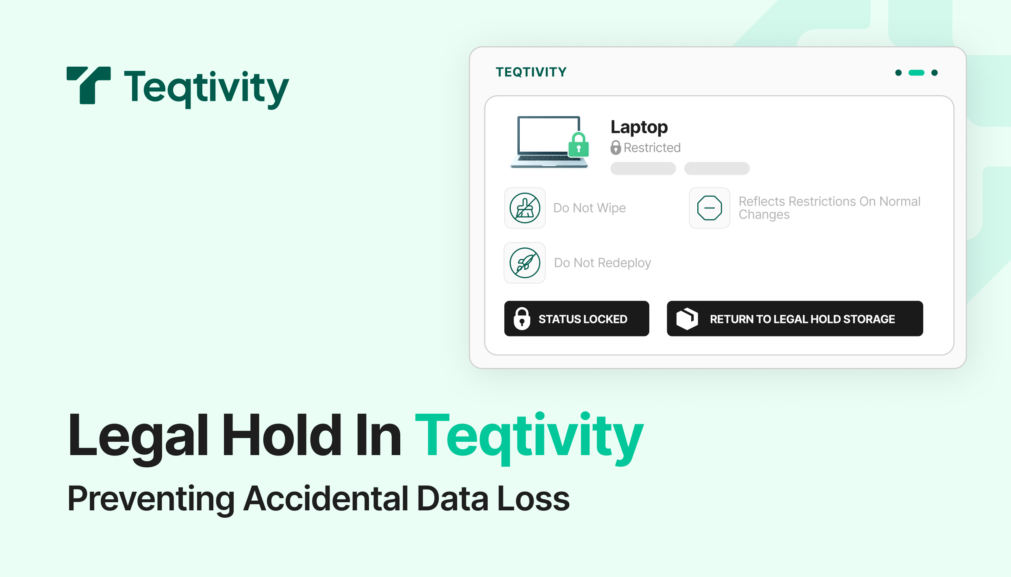
Once a user is on Legal Hold, any assigned asset automatically moves into a Legal Hold status. This provides consistent visibility across the IT team.
Whether the employee is still active or has already left, the device is treated as restricted. Assets on Legal Hold are clearly flagged to indicate that they should not be:
- Wiped
- Redeployed
- Disposed of
- Changed through normal status updates
If a device is returned, it can be placed into designated Legal Hold storage to ensure it is physically protected as well.
The hold remains in place until the original source system removes the flag. IT cannot override it manually, preventing accidental changes during the lifetime of the case.
Teqtivity can also surface backup visibility from supported tools, adding helpful context to confirm that data preservation extends beyond the physical device itself.
Integrations That Support Legal Hold
Teqtivity’s Legal Hold workflow works with systems teams already use, so preservation starts where the information originates.
- HR platforms such as Bob, BambooHR, Microsoft, and Okta
- Legal and case tools like DISCO
- Google environments using Google Vault
- Backup platforms including Nuix and CrashPlan
This ensures Legal Hold protection is applied consistently, even when the signal comes from outside IT.
Why We Built It This Way
Legal Hold spans multiple teams, but enforcement should not depend on timing, handoffs, or memory.
By making holds visible, automatic, and difficult to bypass, Teqtivity helps teams avoid irreversible mistakes and protect device data during routine operations, not just audits or emergencies.